
I have spent years testing webcams for video calls, streaming sessions, and content creation. When it comes to reliable 1080p options that deliver solid performance without breaking the bank, the Logitech C920 and C922 stand out as longtime favorites.In this article, I share my hands-on experience comparing these two models to help you decide which one suits your needs better. I cover key features, real-world performance, and practical advice from a user’s perspective so you can choose confidently.
A Brief Comparison Table
| Feature | Logitech C920 | Logitech C922 |
| Resolution and Frame Rate | 1080p at 30fps | 1080p at 30fps and 720p at 60fps |
| Autofocus | Yes, fast and reliable | Yes, fast and reliable |
| Microphones | Dual stereo mics | Dual stereo mics with improved noise handling |
| Field of View | 78 degrees | 78 degrees |
| Low Light Performance | Good with auto correction | Slightly better auto light correction |
| Build and Mount | Clip-on with tripod thread | Clip-on with tripod thread and included tripod |
| Background Removal | Basic via software | Enhanced via included software |
| Cable Length | 6 feet | 6 feet |
| Best For | Everyday calls and recording | Streaming and motion-heavy content |
My Experience With Logitech C920
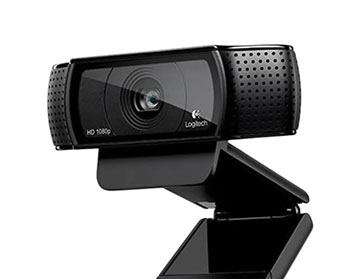
I first added the Logitech C920 to my desk setup during a period of heavy remote work. It transformed blurry laptop camera feeds into clear, professional-looking video that colleagues noticed right away. The autofocus handled my occasional leaning forward to check notes without hesitation, keeping everything sharp.
Audio from the built-in mics worked well enough for daily team calls, though I eventually paired it with a separate USB microphone for better recordings.
Over months of use, the camera proved reliable through countless hours of Zoom sessions and occasional YouTube uploads.
Lighting made a big difference. In my naturally lit home office, the image popped with good color balance. Evenings required a desk lamp, but the auto correction minimized adjustments. I appreciated the sturdy clip that stayed put on my monitor even during enthusiastic gestures.
The six-foot cable reached my desktop tower comfortably without extensions. When I traveled for short trips, packing the lightweight unit took seconds.
One minor frustration came during fast-paced demo videos where 30fps showed slight motion blur, but for standard content, it never disappointed.
After years, the C920 still performs like new with basic care. Its simplicity lets me focus on the conversation or content rather than fiddling with settings.
This real-world reliability is why I recommend it to friends starting their streaming or work-from-home journeys. The experience taught me that consistent basics often outperform flashy features that complicate daily use.
Pros Of Logitech C920
- Build Quality Is Excellent: The C920 feels durable with a matte black finish that resists fingerprints. I have dropped it a couple of times by accident, and it kept working perfectly without scratches showing much.
- Autofocus Works Reliably: The lens adjusts focus quickly as I move around during calls. This saves me from manual tweaks and keeps video sharp whether I am sitting still or shifting position.
- Video Clarity In Good Lighting: At 1080p 30fps, details like facial expressions and text on notes come through clearly. Colors look natural, and the image stays balanced without over-saturation.
- Stereo Microphones Deliver Decent Audio: Voices sound full and clear for most conversations. The mics reduce some ambient noise, making them suitable for quick meetings without an external microphone.
- Easy Plug And Play Setup: I connect it to Windows or Mac computers, and it works immediately with most apps like Zoom, Teams, or OBS. No complicated drivers needed in my tests.
- Affordable Price Point: It offers great value for reliable 1080p performance. Many users, including me, find it lasts years without issues, stretching the budget further.
- Wide Compatibility: It pairs well with streaming software and video conferencing tools. I have used it across different devices without compatibility headaches.
- Automatic Light Correction: It adjusts exposure reasonably well in varying conditions, preventing washed-out faces in bright windows or overly dark shots.
- Value Retention: Even after years on the market, it continues performing well enough that many skip upgrades unless specific features like higher frame rates are needed.
- Versatile Mounting Options: The clip grips monitors of different thicknesses securely, and I can tilt it easily for the perfect angle.
- Energy Efficient: It draws minimal power from the USB port, which matters when using laptops on battery.
- Community Support: Plenty of online guides and settings tweaks exist to optimize it further, making improvements accessible without extra cost.
Cons Of Logitech C920
- Limited To 30 Frames Per Second At Full Resolution: Fast movements can appear slightly choppy compared to higher frame rate options, which bothered me during energetic streaming tests.
- Low Light Performance Can Be Grainy: In dim rooms without extra lighting, noise appears in the image, softening details and requiring supplemental lamps for best results.
- Microphones Are Average At Best: Background sounds sometimes bleed through, and clarity drops in noisy environments, pushing me toward an external mic for important recordings.
- No Built-In Privacy Shutter On Base Model: I have to remember to cover the lens manually or unplug it, which feels less convenient than models with physical covers.
- Fixed Field Of View: The 78-degree angle works for solo use but feels restrictive for wider group shots or desk tours without repositioning the entire setup.
- Autofocus Can Hunt Occasionally: In challenging conditions with varying distances, it sometimes refocuses noticeably, creating brief moments of blur during calls.
- Aging Design In Modern Context: Newer webcams offer USB-C or wider angles, making the older USB-A cable and form factor feel dated for some setups.
- Software Can Feel Basic: The accompanying app provides limited advanced controls, so heavy customization requires third-party tools that add complexity.
- White Balance Occasionally Inaccurate: Under mixed lighting like daylight plus indoor bulbs, colors can shift slightly, requiring manual tweaks in software.
Also Read: Comparison of Superbox S5 Pro And Max
Maintenance Tips For Logitech C920
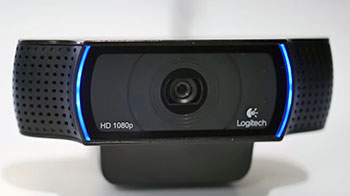
- Clean The Lens Regularly With Microfiber Cloth: I gently wipe the glass after each few uses to remove fingerprints and dust, preserving sharp image quality without scratches.
- Use Isopropyl Alcohol Solution Sparingly: A 70 percent mix on a cloth cleans stubborn smudges effectively, but I avoid spraying directly on the camera to prevent moisture damage.
- Store In A Dry, Dust-Free Place: When not in use, I keep it in its original box or a soft pouch to protect the clip and lens from environmental wear.
- Check Cable For Frays Periodically: Inspecting the USB cord for damage prevents connection issues, and I secure it loosely to avoid strain during movement.
- Update Firmware And Software When Available: Logitech releases occasional improvements that enhance compatibility and performance, so I check their site every few months.
- Avoid Extreme Temperatures: I never leave the camera in hot cars or cold outdoor spots, as heat or cold can affect the internal components over time.
- Mount Securely To Prevent Falls: Ensuring the clip grips firmly reduces accidental drops that could misalign the lens or damage the housing.
- Clean The Microphone Ports Gently: Using compressed air removes dust buildup that might muffle audio quality during calls.
- Test Autofocus Weekly: Running a quick focus test in different lighting helps catch any degradation early before it affects important sessions.
- Use A Lens Cap Or Cover When Idle: A simple sticky note or dedicated cover blocks dust and adds basic privacy without constant unplugging.
- Keep The Mount Area Free Of Debris: Wiping the clip mechanism prevents grit from reducing grip strength over repeated attachments.
- Calibrate Colors In Software Occasionally: Resetting white balance settings maintains natural tones as lighting conditions in my room change seasonally.
- Avoid Over-Tightening Tripod Screws: Gentle attachment preserves the thread integrity for long-term mounting options.
- Monitor For Overheating During Long Use: Though rare, pausing extended sessions if the body warms noticeably extends overall lifespan.
- Clean The Entire Body With Mild Soap Solution: For visible grime, a damp cloth with gentle cleaner keeps the plastic looking fresh without harsh chemicals.
- Backup Settings If Using Custom Profiles: Saving preferred configurations in software makes recovery quick after any resets or updates.
- Inspect For Loose Parts After Travel: Checking screws and the foldable arm ensures everything stays aligned after packing and unpacking.
- Use Surge Protection For Connected Devices: Protecting the USB port from power fluctuations safeguards the camera’s electronics.
- Rotate Usage With Other Peripherals: Giving the camera occasional breaks during heavy weeks reduces wear on the sensor and motors.
My Experience With Logitech C922
Switching to the Logitech C922 felt like a natural step when I began streaming more regularly. The 720p at 60fps option immediately improved how my hand movements and screen interactions looked on live feeds. Viewers commented on the smoother motion compared to my previous setup.
The included tripod allowed quick repositioning from monitor mount to desk level, adding versatility I did not have before. Low light handling seemed a notch better, with faces staying brighter without extra tweaks in mixed conditions.
I used the background removal tool during some test streams, and while it worked decently with a plain wall, complex setups still needed a green screen for clean edges. The dual mics performed similarly to the C920 but with slightly cleaner noise rejection in my tests.
Long streaming sessions stayed comfortable thanks to the same solid build quality. The camera never overheated or dropped frames unexpectedly. Integrating it with OBS was seamless, and the extra frame rate flexibility let me optimize based on bandwidth.
Overall, the C922 enhanced my dynamic content creation without major changes to my workflow. It built directly on the strengths I loved in the C920 while addressing the smoothness I wanted for engaging streams. This upgrade felt worthwhile for my evolving needs, confirming the value in choosing the right model for specific use cases.
Pros Of Logitech C922
- Smoother Motion With 60fps Option: The 720p 60fps mode captures fast actions fluidly, making it ideal for gaming streams or lively tutorials where movement matters.
- Improved Low Light Correction: Auto adjustments keep the image usable in dimmer environments, reducing the need for constant lamp repositioning in my evening sessions.
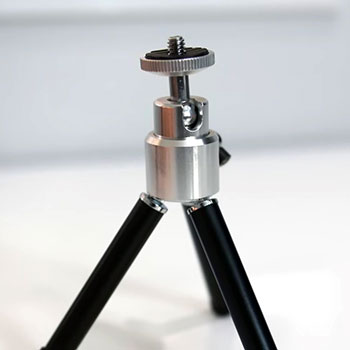
- Included Tripod Adds Flexibility: The small tripod enables easy desk or shelf placement, expanding options beyond monitor clipping alone.
- Enhanced Background Removal Software: The bundled tools handle simple backgrounds more effectively than basic alternatives, saving time in virtual meeting setups.
- Reliable Autofocus For Dynamic Use: It tracks changes in position smoothly, maintaining sharpness during active presentations or reactions.
- Consistent 1080p Quality: Full resolution delivers the same clear details as the C920, ensuring compatibility with high-quality recording needs.
- Dual Mics With Better Noise Handling: Voices come through cleanly, with reduced room interference compared to many budget options.
- Sturdy Construction Matches C920: The build feels equally durable, with a clip that holds firm through repeated adjustments.
- Easy Integration With Streaming Apps: It works plug-and-play across OBS, Streamlabs, and conferencing software without extra configuration hassles.
Cons Of Logitech C922
- Higher Price Than C920: The premium for 60fps feels noticeable when budgets are tight, especially since core image quality stays similar.
- Background Removal Still Imperfect: Edges can appear jagged with intricate backgrounds, often requiring a green screen for professional results.
- Microphones Remain Average: External audio solutions are still recommended for high-quality streams or recordings in noisy spaces.
- No Privacy Shutter Standard: Manual covering or unplugging is necessary, which can interrupt quick workflows.
- 720p At 60fps Sacrifices Some Detail: Switching modes reduces resolution, trading sharpness for smoothness in certain scenarios.
- Software Features Can Be Hit Or Miss: Advanced tools sometimes underperform compared to dedicated apps from competitors.
- Aging Hardware In Evolving Market: Newer models introduce USB-C or AI features that the C922 lacks.
- Potential For Minor Color Shifts: Mixed lighting occasionally requires manual correction despite auto settings.
- Limited Field Of View Adjustments: Fixed angle means physical repositioning for wider or tighter framing.
- Cable Management Can Be Cluttered: The fixed length sometimes creates desk tangles during multi-device use.
- Autofocus Noise In Quiet Recordings: The mechanism can be faintly audible when using built-in mics for sensitive audio.
Maintenance Tips For Logitech C922
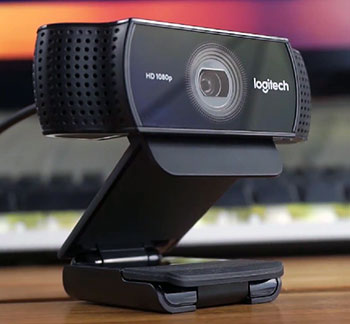
- Wipe Lens With Soft Cloth After Sessions: Regular gentle cleaning prevents buildup that degrades the 60fps clarity I rely on for smooth streams.
- Apply 70 Percent Isopropyl Mix Carefully: Dampened cloth handles smudges well while avoiding direct sprays that could seep into ports.
- Store With Tripod Detached: Keeping components separate reduces stress on connections during transport or storage.
- Inspect USB Cable Regularly For Wear: Checking for bends or exposed wires prevents sudden disconnections during important live sessions.
- Update Logitech Software Promptly: New versions often refine light correction and background tools, maintaining peak performance.
- Protect From Direct Sunlight Or Heat: Avoiding prolonged exposure preserves sensor accuracy and prevents warping in plastic parts.
Read More: Comparison of Tozo T6 And T10
Comparison With Other Brands
Logitech Offers Better Reliability Than Generic Brands: Cheaper no-name webcams often suffer from inconsistent autofocus and poor build quality, while the C920 maintains steady performance over time.
Razer Kiyo Provides Built-In Lighting But At Higher Cost: The Kiyo’s ring light helps in dark rooms, yet the C920 delivers comparable video with external lamps for less money in my tests.
Anker Models Sometimes Have Wider Angles: Some Anker webcams offer adjustable fields of view, but the C920’s fixed 78 degrees feels more natural for standard desk use without distortion.
Elgato Facecam Delivers Smoother Frames In Premium Tier: Higher-end Elgato options push better frame rates and software integration, though the C920 competes well on value for casual streamers.
Microsoft Lifecam Series Feels Less Premium: Microsoft alternatives often have weaker microphones and less sharp lenses compared to Logitech’s glass optics and stereo audio.
OBSBOT Tiny Adds AI Tracking Features: For dynamic following, OBSBOT stands out with movement capabilities, but the C920 suffices for static setups at a fraction of the price.
Creative Webcams Can Be Budget-Friendly Alternatives: Creative options sometimes match resolution but fall short in low-light correction and durability against the C920’s proven track record.
Insta360 Link Brings 4K Resolution: Newer Insta360 models push higher detail, making the C920 seem basic, yet its simplicity avoids the complexity some users dislike in advanced systems.
AverMedia Focuses On Streaming Extras: AverMedia adds more encoding options, but the C920’s plug-and-play ease wins for quick setups without extra configuration.
Dell And HP Laptop Bundled Cameras Lag Behind: Built-in laptop webcams usually offer inferior clarity and mics, pushing users toward the C920 as a significant upgrade.
Poly And Jabra Enterprise Options Prioritize Meetings: Business-focused brands emphasize encryption and integration, where the C920 provides consumer-level quality at accessible pricing.
Canon Or Sony Mirrorless Adapters Offer Pro Quality: Using DSLRs as webcams gives superior results but requires more setup, power, and cost than the straightforward C920.
Razer And Corsair Emphasize RGB Aesthetics: Gaming brands add lighting effects, yet the C920 prioritizes functional video over flashy looks.
Budget Chinese Brands Often Lack Support: Lesser-known manufacturers provide low prices but suffer from sparse updates and shorter lifespans compared to Logitech’s ecosystem.
GoPro As Webcam Feels Overkill: Action cameras work in a pinch but introduce fisheye distortion and battery management issues absent in dedicated webcams like the C920.
The C920 Balances Features Better Than Many Competitors: Across tests, it consistently offers strong image quality without unnecessary extras that inflate prices in other lines.
Frequently Asked Questions (FAQ)
Yes, the C922 is better for users needing smoother motion thanks to 720p at 60fps, though the C920 suffices for standard calls and recording.
Reddit users often note the C922 adds 60fps at 720p and slightly better low light handling, while sharing similar image quality and build with the C920.
Options like the Logitech Brio 500 or Elgato Facecam offer improved features such as better auto framing or higher performance, depending on your specific needs and budget.
Conclusion
I have used both the Logitech C920 and C922 extensively, and you will find real value in either depending on your priorities. If you handle mostly static video calls or basic recordings, the C920 delivers dependable performance at a great price point that I still recommend today.You might prefer the C922 if smoother frame rates matter for streaming or dynamic content, as the added fluidity enhances viewer engagement in my experience. Both models share strong build quality, reliable autofocus, and solid 1080p clarity that make them accessible choices for everyday users like us.
Consider your main activities first. Budget-conscious setups or simple needs point toward the C920, while motion-focused work benefits from the C922’s extras. In the end, you cannot go far wrong with either Logitech option. They continue proving their worth through consistent, user-friendly results that support productivity and creativity alike. Choose based on what fits your workflow, and you will enjoy clearer connections and more polished content moving forward.
Recent Posts
I spent months comparing budget options against established names after my last set of tires wore out sooner than expected.My goal here is to share what I learned from putting Dextero and...
AquaTru Carafe Vs. Classic: Which Is Actually Fits Your Kitchen?
I decided to write this comparison after months of testing both the AquaTru Carafe and the Classic in my own kitchen. Tracking covered daily use.Taste stayed consistent. Refill frequency...